
1- How AI Works
Foundational Concepts of AI
1. Artificial Intelligence (AI): At its core, AI refers to the creation of computer systems that can perform tasks that typically require human intelligence. This includes reasoning, learning, problem-solving, and understanding language. Think of AI as a smart assistant that can help you with various tasks, like sorting your emails or suggesting the best route for your commute.
2. AI Models and Training: AI operates through models, which are like recipes that tell the computer how to process data. These models are trained using large amounts of data, allowing them to recognize patterns and make predictions. For example, if you train a model with thousands of pictures of cats and dogs, it can learn to identify whether a new picture is of a cat or a dog. The more data it has, the better it gets at making accurate predictions!.
Fundamentals of ML:
- While AI may seem smart, it’s important to recognize that its knowledge comes from the specific data it was trained on. This is where Machine Learning comes in.
- ML —> Inference
- After being trained with machine learning, AI can then identify zebras from photos that weren’t in its training set. This process is called inference.
- 3 common machine learning approaches used to develop AI
AI Limitations:
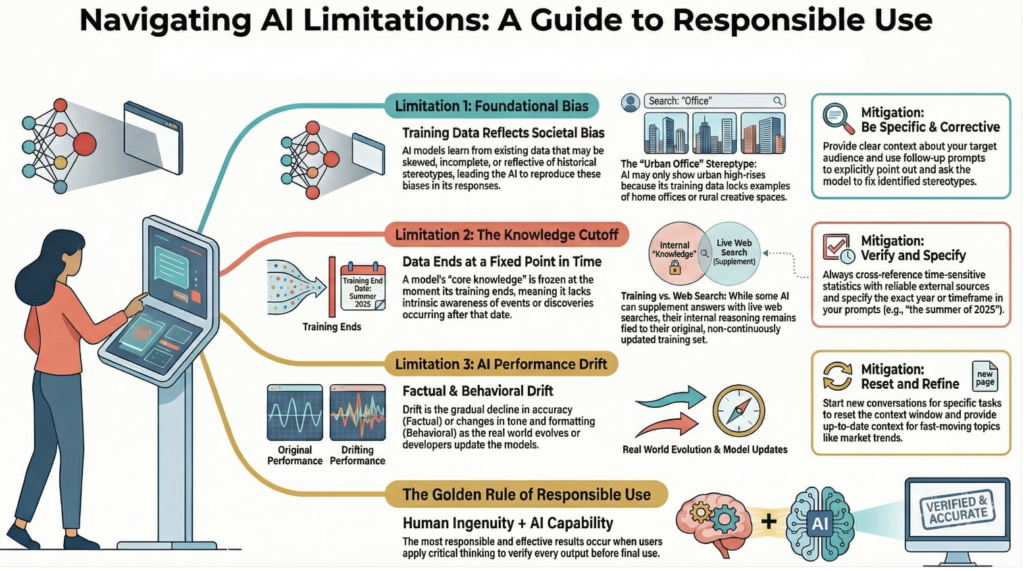
- Biases: AI can reflect biases present in its training data. If the data is skewed or incomplete, the AI might produce outputs that reinforce stereotypes or unfair assumptions. For example, if an AI is trained mostly on urban data, it may struggle to represent rural settings accurately.
- Knowledge Cutoff: AI models have a knowledge cutoff, meaning they only know information up to a certain date. They may not be aware of recent events or developments, which can lead to outdated or inaccurate responses.
- Drift: Over time, the accuracy of AI can decline as the real world changes. This can manifest as factual drift, where the AI’s information becomes less relevant, or behavioral drift, where the AI’s responses change due to updates in its programming.
AI Features and Capabilities:
- Information Understanding:
- Summarizes lengthy reports quickly.
- Extracts insights from complex data sets.
- Creative Assistance:
- Drafts communications (e.g., emails, reports).
- Generates outlines for presentations.
- Creates product images.
- Work Improvement:
- Identifies weaknesses in project plans.
- Suggests enhancements for client proposals.
- Provides fresh ideas for evaluation.
2- Design Great Prompts
Here are the key tips for effective prompting of AI based on the course material:
- Be Clear: Clearly communicate what you want from the AI to avoid misunderstandings.
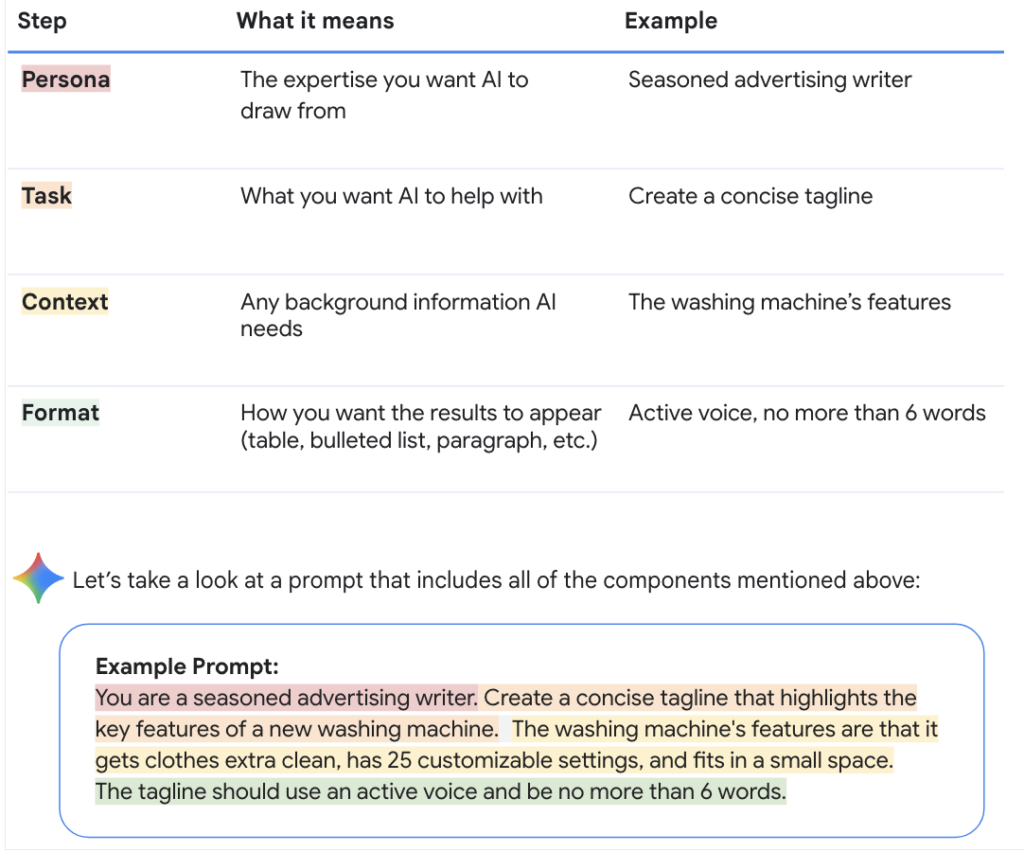
- Provide Context: Include relevant background information that the AI needs to understand your request.
- Describe the Persona: Specify the expertise or knowledge you want the AI to draw from.
- Define the Task: Clearly state the task you want the AI to help with.
- Specify the Format: Indicate how you want the output to be structured (e.g., bullet points, lists).
- Iterate: Use multiple prompts to refine your request and improve the output.
- Add Constraints: Include specific requirements that the AI should meet (e.g., time limits, specific conditions).
- Use Examples: Provide examples or references to help the AI understand your needs better.
- Break Down Requests: If the task is complex, break it into smaller parts and address them one at a time.
- Check Outputs: Review the AI’s responses and provide additional context if needed to improve the results
Follow the three C’s when writing your prompts
- Be concise: Keep prompts simple and avoid overly long or complex requests in a single prompt. A prompt that is short and to the point generally requires less processing from AI.
- Be clear: Be precise and avoid contradictory or ambiguous instructions. Vague prompts, like “Make this better,” give AI too many possible paths and require it to make assumptions. Instead, give clear and specific directions to guide AI toward your intended output.
- Be consistent: Use the same vocabulary for the same concepts throughout your conversation with AI. For example, if you refer to a “spreadsheet” in your initial prompt, continue to say “spreadsheet” throughout the rest of your conversation. Using words like “matrix” or “sheet” interchangeably in the same chat might confuse AI.
Always evaluate the output
It’s important to evaluate the quality of AI output before using or sharing it, as it may have errors. After receiving an AI output, always read through the response to make sure it’s factually correct and fulfills your request. When evaluating AI output, focus on factors such as:
- Accuracy: Is the information correct and factually sound?
- Bias: Does the output favor one perspective unfairly because of its training data?
- Relevancy: Does it directly answer your prompt and stay on topic?
- Consistency: Is the tone, style, and quality the same throughout the response?
Improve your results through iteration
AI outputs should serve as a starting point, not a final product. If an output isn’t what you need, iterate. Use the following techniques to iterate on your prompts and get better outputs.
- Revisit the prompting framework: If your prompt is not giving you the results you need, try editing it by adding more detail to your persona, task, format, or context.
- Break up complex tasks: Don’t ask for everything at once. Ask for smaller pieces of your task, one at a time. This helps AI process each step and lets you check in along the way.
- Add constraints: Add the specific requirements that AI must meet to narrow the focus of the response.
Use references to model your desired result
Use new chats for new topics
- A context window is the limit of how much information AI can retain and refer back to within a single chat. It allows AI to refer back to earlier parts of your conversation so its answers stay consistent. Because of this, you should always start a new chat when changing topics. This ensures AI only focuses on information that is relevant to your current task. If you switch to a completely new topic within the same chat, AI might use the unrelated context provided earlier, and generate an irrelevant or misguided response.
Save your best prompts in a prompt library
Prompt Framework
CASE (Gemini)
Step 1: Define your initial task
Click the “New chat” button to start a new chat with Gemini. Then, paste the prompt below and replace the text in [brackets] with your own details.
- I want to learn a new skill to [your high-level goal, e.g. advance my career, get a new job], but I’m not sure where to start. Help me brainstorm some ideas.
Review Gemini’s suggestions. You will refine these results in the next step.
Step 2: Use meta-prompting to refine the results
In the same chat with Gemini, paste the prompt below to ask Gemini how to improve its own suggestions.
- What questions can I answer to help you tailor your suggestions?
Read Gemini’s questions. You will use them to provide more context in the next step.
Step 3: Add context about yourself
In the same chat with Gemini, answer the questions from the previous step to provide additional context. Paste the prompt below and replace the text in [brackets] with your own details.
Here are some more details about me:
– [Answer 1]
– [Answer 2]
– [Answer 3]
– [Answer 4]
Based on this information, suggest [number, e.g. three] skills that would be relevant to me.
Step 4: Define a persona
In the same chat, ask Gemini to adopt a specific persona to help analyze the previous suggestions. Paste the prompt below and replace the text in [brackets].
- Now, act as a [specific persona, e.g. career coach or hiring manager]. Which of the skills above would you recommend I focus on first? Explain your reasoning.
Step 5: Decide on next steps
In the same chat with Gemini, paste the prompt below and replace the text in [brackets].
- Suggest [number, e.g. three] actions I can take [timeframe, e.g. this week] to start learning that skill. Format this as a [output format, e.g. table] with [format details, e.g. column names].
3- Level Up Prompts
Powerful prompt phrases: This is about using specific, precise language inside a single prompt to improve the quality and depth of AI’s response.
- Give AI a process to follow
- Think step-by-step.
- First, [action 1]. Second, [action 2]. Finally, [action 3].
- Define the audience and tone
- Write this for an audience of [audience type, e.g., executives].
- The tone should be [tone, e.g., professional].
- Set hard constraints
- Write a one paragraph summary.
- Focus exclusively on [topic A, e.g. revenue] and do not mention [topic B, e.g., costs].
- Request a critique
- Critique this text from the perspective of a [role, e.g., potential customer].
- Play devil’s advocate. What is the strongest counterargument to this?
- Generate alternatives
- Give me 3 different versions of this.
- What’s an alternative approach to solving this problem?
- Deepen or expand on the initial output
- Elaborate on point 2.
- Provide more detail and specific examples for the section about [section]
Prompt chaining: This is about using a series of smaller, connected prompts to structure an entire conversation and break down a massive project.
- Say you’re trying to plan a vacation to Paris. You want to create an itinerary of the things you love most while maximizing logistics so you can be as efficient as possible with your time. You could use prompt chaining in the following way:
Prompt 1: I’m going to Paris for 3 days. I like art, historical sites, and parks. Suggest a few well-known places I could visit on my trip.
Prompt 2 (second prompt in chain): Using those locations, create a logical day-by-day itinerary that minimizes travel time.
Prompt 3 (third prompt in chain): For each day of the itinerary, suggest a few restaurants located near the suggested locations.
- By breaking the task into logical, digestible steps and using the output of one prompt as the specific input for the next, you transform AI from a simple answer generator into a structured collaborator.
Unlock the power of prompt chaining (Guide to practice)
What you’ll gain:
- Strategic collaboration: Learn to use AI as a thought partner that can critique and refine your strategy rather than just execute simple commands.
- Complex problem solving: Master the skill of breaking down overwhelming projects into clear and connected phases that build toward a final goal.
- Stronger outputs: Discover how layering information over multiple attempts leads to deeper and more tailored results compared to a single, one-off request.
Apply what you learn:
Experiment with examples relevant to your role.
- If you work in marketing, try generating a campaign concept and then asking for a timeline to launch it.
- If you work in sales, try asking for a list of potential clients and then drafting a tailored outreach email for your top choice.
- If you work in operations, try identifying a workflow bottleneck and then requesting a step-by-step solution to fix it.
Generate Visuals:(Multimodality)
- To break it down, modalitiesare different types of formats, like text, image, or audio. Multimodality is useful because it allows you to give Gemini more detailed and richer context when prompting it. Instead of telling it what you want using only words, you can enrich your instructions with images, video, and audio.
- What we learn:
- Visual storytelling: Learn to create custom imagery that matches your specific vision without needing complex graphic design software.
- Multimodal fluency: Learn the nuances ofprompting AI to create images (such as specifying style, lighting, and composition) as well as how to use images themselves to guide AI.
- Streamlined workflow: Get experience generating, refining, and combining different creative elements, such as copy and visuals, within a single chat interface.
- What we can do:
- If you work in marketing, try generating a social media image for a new product launch
- If you work in sales, try generating visuals to make a slide deck more engaging
- If you’re an educator, try creating visual aids for a lesson plan
Create custom images with Gemini
To use the features covered in this lab, sign into Gemini using your Google Account.
This lab will give you experience bringing an idea to life by generating images with Gemini. You can use image generation models to enhance your presentations, create or edit social media posts, or whenever you need custom visuals for your work.
The lab instructions below use a concert poster as an example, but you can adapt them to fit your own work.
Step 1: Brainstorm ideas for your image
First, we will ask Gemini for some help generating and organizing ideas for our image.
You can use this process for any type of image you want, for example a social media post or a slide in a presentation.
Tip: Having trouble describing the style you want? Upload a reference image from your files or the web to show Gemini an example of what you’re looking for.
When you are ready, click the “New chat” button to start a new chat with Gemini, and select the Pro model.
I need some ideas for a [type of image, e.g. concert poster, social media post, or presentation slide] about [what the image is about, e.g. a music band].
The style should be [visual style, e.g. modern, retro, or minimalist] and the mood should be [mood, e.g. excited, calm, or mysterious].
Please give me 3 different creative concepts. For each concept, provide a:
- Description: A brief explanation of the visual layout.
- Color Palette: A set of colors that fit the mood.
OPTIONAL:
Reference Image: I have attached an image for you to use as a reference. Please look at this image and use its [composition / color scheme / overall vibe] to inform your suggestions.
You’ll use the ideas generated here later in Step 3.
Step 2: Draft text for your image
In the same chat, you can ask Gemini for some ideas for any text that you might want to go with your image.
Paste the prompt below and replace the text in [brackets] with your own details.
Generate 3 options for text for a [type of project, e.g. poster, social media post, or presentation slide] about [the main subject or topic].
For context, [additional details or key information]. The tone of the writing should be [desired style, e.g. bold, professional, or playful] in order to [primary objective, e.g. get people to attend, explain a concept, or spark a conversation].
Please provide a few options ranging from short and punchy to more descriptive.
The text generated will also be used to give context that Gemini can use when generating images in the next step.
Step 3: Generate the image by combining your ideas
Now, it’s time to bring everything together to generate your final image. In the same chat, use the prompt below to combine your favorite visual concept and the text you just generated. This context will help Gemini more accurately create what you are looking for.
Based on the [chosen creative concept] and the text ‘[insert your favorite headline/text here]’, generate a detailed image.
The image should feature [subject/main focus] in a [visual style, e.g. photographic, 3D render, or oil painting] style.
Ensure the composition includes [layout requirements, e.g. plenty of empty space at the top or a blurred background]. The overall mood should be [mood/vibe].
Step 4: Edit the image
Often there will be some adjustments you’ll want to make to the image to get it to be exactly what you want. For example:
- Changing the Composition:
- This is great, but can you move the [subject, e.g. the guitar] to the [position, e.g. left side] to leave more room for my text on the [opposite side, e.g. right]?
- Adjusting the Lighting/Color:
- Can you make the overall lighting [mood, e.g. brighter and more natural] and change the background colors to [specific colors, e.g. shades of blue and silver]?
- Adding or Removing Detail:
- Please keep the same style, but add [detail, e.g. a subtle texture or more people in the background] and remove the [item to remove, e.g. the bright lens flare].
- Modifying the Style:
- I like the layout, but can you change the style from [current style, e.g. a photo] to a [new style, e.g. a minimalist vector illustration]?
You can repeat this step until you arrive at an image you like, adjusting the prompt to provide direct feedback each time.
4- Use AI Responsibly
Responsible AI in practice:
- Responsible AI refers to the ethical and thoughtful use of artificial intelligence technologies. It emphasizes the importance of ensuring that AI systems are developed and used in ways that are fair, transparent, and accountable. This means that while AI can be a powerful tool for innovation and efficiency, it must be applied with care to avoid potential harm, bias, or misinformation.
- The principles of responsible AI typically include:
- Fairness: AI systems should be designed to avoid bias and discrimination, ensuring that they treat all individuals and groups equitably.
- Transparency: Users should understand how AI systems make decisions, which involves clear communication about the data and algorithms used.
- Accountability: There should be mechanisms in place to hold individuals or organizations responsible for the outcomes of AI systems, ensuring that they can be audited and evaluated.
- Privacy: AI should respect user privacy and protect personal data, ensuring that sensitive information is handled securely.
- Safety and Security: AI systems should be robust and secure, minimizing risks of misuse or unintended consequences
Hallucination:
AI hallucination refers to instances when an AI system generates outputs that are incorrect, misleading, or entirely fabricated, despite sounding plausible or confident. This phenomenon can lead to the dissemination of false information.
Reasons why AI hallucination occurs:
- Errors in Training Data: If the data used to train the AI contains inaccuracies or biases, the AI may produce flawed outputs based on that information.
- Unique or Unfamiliar Queries: When faced with questions or tasks that are too unique or outside its training scope, the AI may attempt to generate a response based on patterns it has learned, leading to incorrect conclusions.
- Lack of Real-World Understanding: AI does not possess common sense or real-world experience. Its responses are based solely on patterns in the data, which can result in nonsensical or irrelevant outputs.
- Guessing: In some cases, the AI may generate responses that are essentially educated guesses, especially when it lacks sufficient context or information.
If you get a bad response:
When you get a response that you find unsatisfactory, it’s perfectly okay to express that by giving a thumbs down. This feedback is valuable because it helps improve the system.
Best Practices for Responsible AI:
- Take steps to protect sensitive information: Here are a few practical ways to protect confidential information:
- Use generic placeholders when referring to people, projects, or places
- Frame prompts around the task you need done, not the people involved
- Input only relevant context needed to complete the task, rather than entire documents
- Clear AI’s memory to give it a clean slate, help protect privacy, and prevent bias from old prompts
- Reference: https://support.google.com/gemini/answer/13278892?hl=en&co=GENIE.Platform%3DAndroid&sjid=16687150541517362456-NA#zippy=%2Cin-the-gemini-mobile-app
Understand regulatory and compliance boundaries
- Some tasks can carry legal or compliance requirements that can limit or prohibit AI use, even when the technology seems capable.
- Before using AI for any work that might touch on regulated areas, ask yourself:
- Does this task have regulatory requirements? Managing medical records, financial reporting, legal documents, and compliance filings may have specific handling requirements. Consult your employer’s policies or a qualified professional to determine the limitations of using AI in these instances.
- Are there licensing or credential requirements? Some work must be performed or verified by licensed professionals. AI is not a substitute for advice from a qualified professional.
- Who is responsible? People are responsible for the inputs and outputs of AI tools and should ensure they have the appropriate oversight when using AI tools.
Build accountability into your process
- Here are some steps you can take to demonstrate how you’ve used AI in your work:
- Track your sources. Distinguish between AI-generated content and your own contributions so you can verify or explain your work later
- Make your process auditable. If someone asks “How did you reach this conclusion?” you should be able to walk them through which parts involved AI and how you validated them
- Document your verification steps. Keep notes on how you checked AI’s work, especially for important deliverables
Use the ACT checklist
- Make sure you follow the ACT checklist every time you use AI. It’s your cheat sheet for using AI responsibly.
- A stands for “Ask yourself”
- Is AI right for this task? Don’t rely on AI for medical, legal, financial, or other professional advice. Always consult a qualified human professional.
- Is this data safe to use? Avoidinputting sensitive, confidential, personal, or proprietary data into a public AI tool, like internal company data or customers’ personally identifiable information.
- Am I following the rules? Always check your employer’s policies on using AI at work and make sure you’re using an approved tool, like an enterprise tool versus a public one.
- C stands for “Check before you use the output”
- For accuracy: Make sure you independently verify all information presented as fact (names, statistics, quotes, etc.) and watch out for subtle hallucinations and errors.
- For bias and objectivity: Always evaluate the output to make sure it does not contain unfair biases or present a one-sided argument.
- For appropriateness: Assess whether the tone and style of the output is right for your intended audience and purpose, like a company social media post versus a casual email.
- For originality and judgment: Edit, refine, and add your own expertise to improve the AI output. If you receive an output that does not meet your need, iterate on your prompt to get better results.
- T stands for “Tell people when you use AI”
- Be transparent: Clearly and appropriately disclose where and when AI was used to help generate content.
- Be compliant: Always follow your company’s specific guidelines on AI disclosure, and never input any sensitive information into a public-facing AI tool.
5- Learn About AI Agents
- Unlike standard AI chatbots, you can choose to let AI agents access the tools you use every day, like email, calendars, or documents, and take action on your behalf and under your control.
- Cases:
- Conduct market research: You can use an agent to analyze new competitors, find their key features, and synthesize recent customer reviews into a weekly team email
- Streamline sales and CRM: You can set up an agent to go through your inbox, identify new sales leads, extract their contact information, and automatically create new entries for them in your CRM
- Assist with forecasting demand: You can have an agent analyze sales and inventory data, predict future demand for your products, and order the necessary supplies to make sure you’re preparedUnderstand how AI Agents work:
- Understand how AI Agents work:
- Models: Modelsare computer programs trained on vast amounts of data, which allows them to recognize patterns. When you give an AI agent a goal, the model uses its training to predict which tasks are necessary to achieve that goal and how to use the tools available to complete it.
- Permissions: AI agents connect to other software and tools through specific permissions you grant. These settings act as guardrails, controlling how the agent executes tasks within the parameters you set. For example, if you assign an agent to manage your inbox, you can restrict its access to only read unread messages.
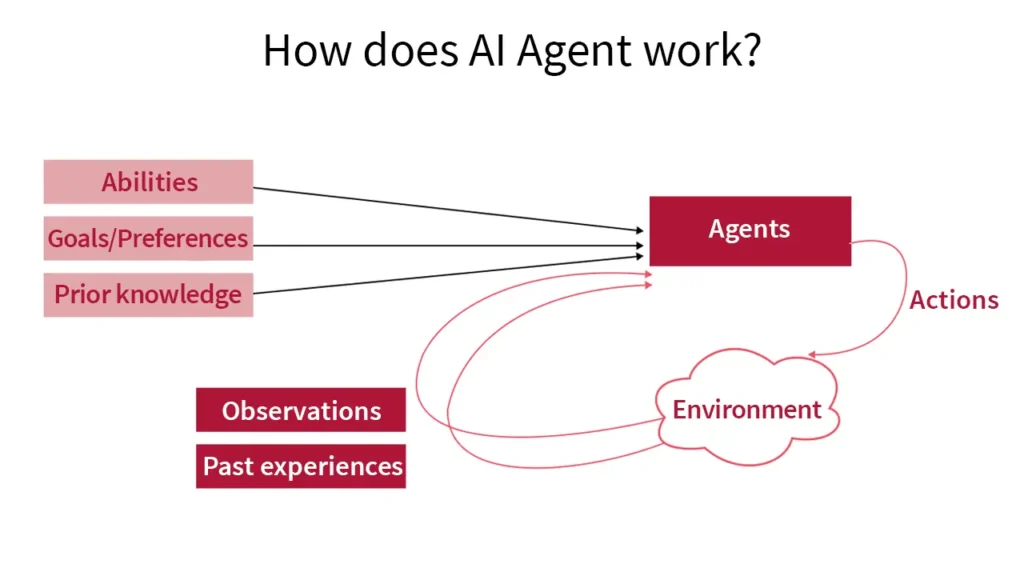
- Goals: A goal is the broad objective you provide an AI agent, such as “Organize the Q3 kickoff meeting.” Once a goal is set, the agent operates in a continuous loop until the goal is complete.
- Analyze: The agent uses its model to determine the necessary first task, like connecting with your calendar to find free time
- Act: Once permissions are granted, the agent executes that task, like finding a time for the team to connect
- Observe: The agent reviews the result of its action and ensures it’s aligned with the goal, like checking the selected time to make sure everyone is available
- After completing the Observe step, the agent begins the loop again by moving to the next task, like drafting and sending the calendar invitations. The agent continues this loop until the meeting is successfully scheduled.
- Our guide to working with agents responsibly
- When deciding whether to delegate a goal to an agent, keep these two principles in mind:
- Risk: What’s the impact of a mistake? For example, drafting an internal memo may be low risk. But using an agent to make purchases on your behalf might be high risk depending on the size of the transaction.
- Reversibility: How easily can an action be undone? Drafting an email and saving it to your drafts folder is highly reversible. Posting directly to a public social media account is not.
- For high-risk or irreversible goals, you should maintain tighter control through a human-in-the-loop approach. Set clear boundaries, define acceptable parameters, and maintain oversight at each critical step.
- The best way to use AI agents responsibly is to start small. Look for agentic features in the software and tools you’re already using, and try giving an agent a simple, low-risk goal.
- When deciding whether to delegate a goal to an agent, keep these two principles in mind:
- Best practices for directing AI agents
- Start with a clear, specific goal: Provide a precise description of what you’re trying to accomplish. “Plan a marketing campaign” is vague. “Draft a 3-email sequence for our new product launch” is clear and actionable.
- Manage permissions wisely: Be mindful of what you approve. If an agent needs to read emails to find contacts, grant only that specific permission. Avoid giving master permissions that grant blanket access to your entire app.
- Always evaluate: You’re responsible for any work the agent produces. Always check the work, especially on high-stakes tasks.
- Iterate and refine: Treat the agent as a collaborator. If the first result isn’t right, refine your instructions or provide more context.
6- AI for Brainstorming and Planning
Step 1: Brainstorm presentation structures
Click the “New chat” button on the left side menu to start a new chat with Gemini. Then, paste the prompt below and replace the text in [brackets] with your own details.
I’m preparing a presentation on [your topic, e.g. AI]. My primary goal is to [your main objective, e.g. show how AI can be useful at work]. Help me brainstorm [number] compelling ways to structure my presentation for an audience of [your specific audience, e.g. professionals].
Step 2: Find a “hook” statistic
In the same chat with Gemini, paste the prompt below and replace the text in [brackets] with your own details.
I like [your favorite option from step 1, e.g. the value of AI at work]. Now I need a powerful hook for my introduction. What’s a surprising statistic about [your topic from step 1, e.g. the value of AI at work]?
Step 3: Draft your first paragraph
In the same chat with Gemini, paste the prompt below and replace the text in [brackets] with your own details.
I like [your favorite hook from the previous step]. Using that, draft an opening paragraph for my presentation. Generate [number] options that range in tone from [one tone, e.g. casual] to [another tone, e.g. professional].
Brainstorm Ideas:
- Brainstorming: AI can help you generate a wide range of ideas quickly, pushing creative boundaries and uncovering solutions you might not have considered.
- Planning: AI assists in organizing those ideas into structured plans, identifying potential risks, dependencies, and gaps in your strategy.
Brainstorm and evaluate ideas to make faster decisions
- What you’ll gain:
- Faster validation: Move in less time from lots of ideas, to multiple quality ideas, to the right idea
- Informed decisions: Ground your decisions in insights rather than instinct alone
- Industry awareness: Stay up-to-date on the latest research with automated reporting
Case:
- Step 1: Brainstorm new product ideas
- Click the “New chat” button on the left side menu to start a new chat with Gemini. Then, paste the prompt below and replace the text in [brackets] with your own details.
- You are a [persona, e.g. marketing expert] in the [industry, e.g. audio industry]. My company is developing a [new product, e.g. new line of premium headphones]. Help me brainstorm [items to brainstorm, e.g. accessories or add-ons] that I could [purpose, e.g. bundle with this product].
- Review the ideas from Gemini. You will analyze them in the next step.
- Step 2: Create a cost-benefit analysis table
- In the same chat with Gemini, paste the prompt below to compare the options generated in the previous step. You can customize the columns of your table for your analysis.
- Perform a [type of analysis, e.g. cost-benefit analysis] for each of these ideas. Format your response as a table with the following columns:
- – [Column 1 name, e.g. Idea]
- – [Column 2 name, e.g. Cost (low/medium/high)]
- – [Column 3 name, e.g. Benefit (low/medium/high)]
- Use the table created by Gemini to identify the options that provide high benefit at a low cost.
- Step 3: Research industry trends
- In the same chat with Gemini, paste the prompt below to get more context for your decision.
- What are some current industry trends around [your product or industry]? I’d like to factor those insights into my decision.
- Review the trends from Gemini. You will automate this research in the next step.
- Step 4: Schedule a recurring analysis
- In the same chat with Gemini, paste the prompt below to schedule the previous query to run automatically.
- Run this analysis [desired frequency, e.g. once a week] so I can stay up to date on these trends.
- After Gemini confirms the action, you can select “Edit” to change the name or adjust the schedule. When ready, outputs from your scheduled action will appear in your conversation list on the left-hand panel. To edit your scheduled action at a later time, select “Settings & help”, then select “Scheduled actions” on the menu to open your list of scheduled actions.
Create a Project Timeline:
Gemini can also analyze project plans and identify hidden risks. The targets are:
- Improved risk management: Catch potential problems before they derail your project
- Deeper analysis: Get a comprehensive review of your plan in minutes instead of hours
- Clearer communication: Create timelines that account for all the moving parts and show how they connect so you can confidently share them with your team
Case:
- Firstly upload
- Step 1: Identify missing project dependencies
- Click the “New chat” button to start a new chat with Gemini. Then, attach youryour documents of Workback Schedule and Key activities. Then, paste the prompt below and replace the text in [brackets] with your own details.
- You are a [persona, e.g. project manager]. My company is launching a [product, service or initiative]. I’ve attached [document 1] and [document 2]. Are there any dependencies missing from the plan?
- Review Gemini’s analysis of missing dependencies and identify an area to focus on in the next step.
- Step 2: Assess the risk of missing dependencies
- In the same chat with Gemini, paste the prompt below and replace the text in [brackets] with your own details.
- Let’s focus on [a missing dependency from Gemini’s previous response]. How do they affect the [overall project goal, e.g. the launch]?
- Step 3: Generate an updated project timeline
- In the same chat with Gemini, paste the prompt below and replace the text in [brackets] with your own details.
- Create a timeline listing key milestones for [the missing dependency from the previous step]. Flag what might be missing from my current plan
Knowledge Hub in NotebookLM
NotebookLM is useful for when you need to create a shared knowledge hub where your team can instantly find accurate answers directly from your project documents.
What we will gain:
- Instant, accurate answers: Give your team a way to find information without waiting for a reply
- Reduced interruptions: Spend less time answering routine questions and more time on focused work
- A source of truth: Ensure everyone on the team is working from the same information, based only on the documents you provided
Case:
- Upload your documents to the NotebookLM
- Creating some chats to check the responses
- Share your notebook with your team: In the same NotebookLM notebook, click the “Share” button at the top of the page. Then, add team members by entering their email addresses. Additionally, you can create a “Welcome Note” for team members you are sharing this with, and you can adjust access levels as well.. When you are ready, leave the “Notify people” box checked and click “Save.” Your teammates will receive an email with a link to the notebook
Tips and Tricks
1. Leverage Expert Personas
The Tip: Don’t just ask for ideas; tell Gemini who it should be (e.g., an “Expert Menu Developer” or “Event Strategist”).
The Benefit: This shifts the AI from generic responses to high-level, industry-specific insights that match professional standards.
2. Use Data for Prioritization
The Tip: When you have too many options, ask Gemini to evaluate them in a structured table using specific metrics like search volume, competition, or relevance.
The Benefit: It moves decision-making from “gut feeling” to objective, data-driven strategy.
3. Audit for Logic and Gaps
The Tip: Upload your existing plans and ask Gemini to act as a “Red Team” to find missing dependencies or timeline gaps.
The Benefit: AI is excellent at spotting “hidden” requirements (like a permit needed before a build) that humans might overlook in a complex project.
4. Use “Grounded” AI for Personal Files
The Tip: For searching through dozens of your own PDFs or catalogs, use a tool like NotebookLM.
The Benefit: This ensures the AI only uses your specific, verified data, providing citations so you can double-check the source instantly.
5. Move from “Risk Identification” to “Mitigation”
The Tip: Once a risk is found, don’t just list it—ask Gemini to analyze the impact on your timeline and suggest alternative milestones.
The Benefit: This transforms the AI from a simple “warning system” into a strategic collaborator that helps you build a “Plan B.”
7- AI for Research and Insights
Build a Research Report with Gemini Deep Research:
- AI as a Research Partner: AI can quickly analyze multiple sources of information, helping you gather insights faster than traditional methods.
- Gemini Deep Research: This tool can synthesize data from various sources, allowing you to create comprehensive reports efficiently.
- NotebookLM: This tool helps summarize diverse materials, such as articles and videos, into actionable insights.
- Custom AI Expert (Gem): You can create a personalized AI to simulate expert opinions, helping you test ideas and gain new perspectives.
- Comprehensive answers: Go from a complex question to a detailed report without spending hours browsing
- Targeted, relevant results: Customize your research plan so it focuses on the exact information, timeframes, and sources you need
- Shareable insights: Quickly turn dense research into an easy-to-understand infographic that you can share with others
Case:
Step 1: Get initial market trend ideas
Click the “New chat” button on the left side menu to start a new chat with Gemini. Then, paste the prompt below and replace the text in [brackets] with your own details.
I’m planning a [new product or service, e.g. new paint line] for my company. What [information, e.g. risks or market trends] should I be aware of?
Review Gemini’s response. You will use this as a starting point for a more in-depth analysis in the next step.
Step 2: Start a Deep Research project
Click the “New chat” button to start a new chat with Gemini. Then, select “Deep Research” from the “Tools” menu. Then, paste the prompt below and replace the text in [brackets] with your own details.
I’m planning a [new product or service, e.g. new paint line] for my company. Research [specific market trend provided by Gemini in the previous step].
Gemini will produce a “Research Plan.” Review this plan before proceeding.
Step 3: Refine the Research Plan
In the same Deep Research chat, click “Edit Plan.” Paste the prompt below and replace the text in [brackets] with your own details.
Focus on [specific aspect of the topic you’re researching], use only sources from [desired time frame, e.g. the last 2 years], and be sure to include [specific data points, e.g. data on consumer adoption].
Step 4: Kick off the research
In the same Deep Research chat, click “Start Research.” Check back in a few minutes to review your research report.
Step 5: Generate an infographic
Once your research is complete, you can turn it into an infographic by clicking “Create” on the top right-hand side of the research report and selecting “Infographic.”
Create and share research summaries in NotebookLM:
- Faster synthesis: Quickly understand the key points from a large set of mixed-media documents
- Grounded knowledge: Get reliable answers and insights drawn exclusively from your sources
- Flexible outputs: Transform your sources into easy-to-understand summaries in different formats that match your audience’s preferences.
Case:
- Step 1: Generate a summary of your sources
- After you sign into NotebookLM, select “Create a new notebook”. You’ll then be presented with a pop-up menu where you can upload documents. (Podcasts, PDF, websites, Youtube videos) Once your sources are loaded, paste the prompt below into the prompt textbox.
- Summarize the key learnings from these sources in [desired length, e.g. one page].
- Review NotebookLM’s summary. Note that the summary includes citations, as NotebookLM draws directly from the sources you provided. This reduces hallucinations, and it allows you to check the output for accuracy and use AI responsibly.
- Step 2: Ask questions about your sources
- In the same notebook, ask questions about your sources by typing them into the text box at the bottom of the page. You can find themes across your materials, dig deeper into a single file, or see which documents address a specific topic.
- If you’ve used the sample materials, try this question:
- Do any of these sources talk about how to test different color choices in design?
- Step 3: Generate additional resources from your sources
- In the same notebook, use the right-hand Studio panel to generate additional resources. You can generate an Audio Overview, Video Overview, Mind Map, and more by clicking on the corresponding buttons in the Studio panel.
- Next steps:NotebookLM offers many ways for you to summarize your collection of files. Try uploading files that are relevant to your work to better understand their contents. Remember to be responsible when selecting which documents to upload.
Build an Expert Advisor with Gemini Gems (Customer AI Expert)
You can create a Gem for a variety of tasks, like getting specialized advice, challenging your thinking on business decisions, and ensuring your ideas are sound from an expert’s point of view.
What you’ll gain:
- Better ideas, faster: Get crucial feedback in minutes
- New perspectives: Uncover blind spots by stress-testing ideas through expert lenses
- Shared knowledge: Give your entire team access to a library of expert advisors they can consult and reuse anytime
Case:
- Step 1: Explore a persona
- Click the “New chat” button to start a new chat with Gemini. Then, paste the prompt below and replace the text in [brackets] with details relevant to your own work.
- What are the key characteristics of [an expert role relevant to your work, e.g. a highly competent interior designer]?
- Read Gemini’s response, then select and copy it. You will use the response and its insights to create your Gem.
Step 2: Create a custom Gem
- In the top left corner of the Gemini app, click on the three horizontal lines to expand the menu. A panel will open where you can select “Gems”. You’ll then be brought to the “Gem manager” screen, where you can select “New Gem.”
- First, give your Gem a name (e.g. Interior Designer) and below add a description of what this Gem will do for you (e.g. Give interior design advice).
- Then, paste the text below into the instructions box, replacing the text in [brackets] with Gemini’s output from Step 1.
- You are [expert role, e.g. a highly competent interior designer]. Your key characteristics include: [characteristics from Gemini’s output in the previous step]. I am a [your role]. Use your expertise to challenge my thinking and ensure my ideas are sound. Your advice should be clear, candid, and informative. Stay in character throughout the conversation.
Step 3: Ask your custom Gem questions
- Start a new chat with your Gem to try it out. You can use it to get advice, solicit feedback on an idea, or answer questions related to its expertise. For example:
- What are the top factors to consider in selecting a [product or service offered by your company]?
- If you’d like to share your Gem, you can do so by navigating to “Explore Gems” and clicking the share icon next to your Gem’s name.
8 – AI for Writing and Communicating
Keep your team on Track
- Tailoring Messages: Adjust your writing style based on the audience (e.g., teammates vs. CEOs).
- AI as a Writing Partner: Use AI tools like Gemini to draft, refine, and practice communications.
- The elements of communication are crucial for effective messaging. Here’s a brief overview of each element:
- Purpose and Intent:
- Define the goal of your message.
- Examples: persuade, inform, deescalate, or inspire.
- Understanding Your Audience:
- Know the priorities and needs of your audience.
- Tailor your message based on their mindset and expectations.
- Authenticity and Voice:
- Ensure your communication sounds like you or aligns with your company’s brand.
- Be the final editor to maintain your personal touch.
- Accountability:
- Be responsible for the impact of your words.
- Review your message to avoid misunderstandings.
- Strategic Judgment:
- Choose the most effective communication method (e.g., email vs. phone call).
- Sometimes, no message may be the best option.
- Purpose and Intent:
Automate notetaking to enhance teamwork:
- how to use Gemini in Google Meet to capture meeting notes and transform them into a structured action plan that clarifies decisions, assigns owners, and sets deadlines.
- Focused meetings: Stay engaged in discussions without having to take detailed notes at the same time
- Actionable next steps: Transform conversations into clear action plans with assigned owners and deadlines
- Better team alignment: Give everyone a shared source of truth about what was decided and what happens next
Case:
- Step 1: Generate an action item report from a transcript.
- Click the “New chat” button on the left side menu to start a new chat with Gemini. Then, paste the prompt below and attach a meeting transcript. Replace the text in [brackets] with your own details. Add a transcrip
- Acting as [a role that would excel at the task you want to accomplish, e.g. a senior project manager], generate a report based on the attached transcript. The report must have the following sections: [description of the sections you want in the report].
- Step 2: Evaluate the report: In the same chat with Gemini, paste the prompt below and replace the text in [brackets] with your own details.
- Evaluate the report using these criteria:
- [First criteria, e.g. Brevity]
- [Second criteria, e.g. Clear action items]
- [Third criteria, e.g. Clarity]
Pressure test ideas in Gemini
- Translation is the most underrated feature of AI
- Get feedback to strengthen your work (how to use Gemini to simulate stakeholder perspectives and identify gaps in your thinking.)
- Increased confidence: Walk into important meetings feeling prepared for tough questions
- Stronger proposals: Identify blind spots and strengthen your ideas before you present them
- Diverse viewpoints: Understand different perspectives by testing your idea against multiple personas
- Case:
- Step 1: Give Gemini a persona to get feedback
- Click the “New chat” button to start a new chat with Gemini. Then, attach a document you’ll want feedback on. (For instance: This document outlines a proposal for a GPS Technology Refresh to replace the current inefficient and outdated GPS solution.)
- Then, paste the prompt below and replace the text in [brackets] with your own details.
- I’m working on a [type of document, e.g. proposal or report] for [brief description of your project]. Act as the [stakeholder you want feedback from and list their priorities], and review the document attached. From your perspective, is there any information missing?
- Review Gemini’s response. You will use these details in the next step.
- Step 2: Work through potential edits
- In the same chat with Gemini, work through a potential edit to address the feedback from the previous step. For example:
- You provided the following feedback about [feedback topic, e.g. the proposal is not detailed enough]. I plan to resolve your feedback by [proposed resolution, e.g. including a timeline, budget, and resourcing]. Does that resolve the concerns, or are you looking for more?
- Step 3: Draft a summary based on your new details
- In the same chat with Gemini, paste the prompt below and replace the text in [brackets] with your new details.
- How would you write a [desired length, e.g. 2-sentence] summary of this plan for the [document, e.g. one-pager]?
- You can now edit your document using Gemini’s output as a starting point.
- Step 1: Give Gemini a persona to get feedback
Draft Communication with Gemini Canvas
- Now lets learn how to use Gemini Canvas to create, collaborate, and refine your communications.
- You’ll use chain-of-thought prompting to identify your stakeholders’ priorities and get the most relevant outputs from Gemini.
- Then you’ll practice transforming a single source document into multiple emails that are tailored to those specific stakeholders.
- What you’ll gain:
- Stakeholder alignment: Ensure each person receives information relevant to their role and priorities
- Communication efficiency: Transform one message into multiple tailored communications in minutes
- Interactive refinement: Make real-time edits without starting from scratch each time
- Case:
- Step 1: Extract key points from a source document
- Click the “New chat” button to start a new chat with Gemini. Then, attach your source document.(A report)
- Then, paste the prompt below and replace the text in [brackets] with your own details.
- I’m a [your role, e.g. project manager] responsible for [the project, e.g. the launch] described in the document attached. I’m working on [a piece of communication, e.g. an email] announcing [the topic, e.g. the launch] to [the audience, e.g. the full company]. Pull [number] key points from the document that I can use in my message.
- Review Gemini’s key points. You will use these to draft communications in the next step.
- Step 1: Extract key points from a source document
- Step 2: Identify stakeholder-specific points
- In the same chat with Gemini, paste the prompt below and replace the text in [brackets] with your own details.
- Select some points specifically for two key stakeholders: [stakeholder 1, e.g. our CFO] and [stakeholder 2, e.g. our operations manager]. Start by thinking about their priorities based on their roles before choosing the points I should highlight for each.
- Review Gemini’s prioritized points. You will use these to draft an email in Canvas.
- Step 3: Draft a stakeholder email in Canvas
- From the tools menu, select Canvas. Paste the prompt below, using the context from the previous step. Replace the text in [brackets] with your own details.
- Draft the email to [stakeholder 1]. Include the [Gemini’s prioritized points from the previous step] as [format, e.g. bullets].
- Gemini will generate the draft in the Canvas editor, where you can make further edits.
- Step 4: Refine the draft using inline edits
- In the Canvas editor, highlight some text you want to change, like the subject line. In the “Ask Gemini” box that appears, type your edit request.
- Make this [desired change, e.g. shorter or more formal].
- You can repeat steps 3 and 4 with the other stakeholder named in step 2.
Using Gemini App vs Canvas:
The biggest difference between using the Gemini app and Canvas mode lies in their functionality and purpose:
- Gemini App: This is more suited for collaborative tasks where you want to interact with the model in a chat format. It’s useful for generating responses and having conversations, but it can be challenging to make specific edits or changes to text.
- Canvas Mode: This allows you to highlight specific portions of text and have a more focused conversation about those sections. It’s ideal for editing and refining content, as you can easily pinpoint areas you want to change or expand upon.
Get Speech Feedback from Gemini Live
- How to use Gemini Live in the Gemini mobile app to simulate an important conversation. When you go live with Gemini, you can have a natural, back-and-forth conversation to test your approach in real time.
- What you’ll gain:
- On-demand practice: Rehearse difficult conversations anytime, anywhere, right from your phone
- Greater preparedness: Walk into high-stakes situations feeling better prepared and ready to deliver your key points
- Actionable feedback: Get specific suggestions on your strengths and weaknesses to improve your approach
- Sales Pitch Case:
- Importance of Effective Communication: The speaker emphasizes the need to perform well in critical conversations, such as sales pitches and presentations.
- Utilization of AI Tools: The introduction of Gemini Live as a tool for simulating conversations and providing feedback is highlighted, showcasing how technology can aid in communication.
- Role-Playing Scenarios: The speech illustrates a practical example of role-playing a sales call, demonstrating how to prepare for real-life interactions.
- Feedback and Improvement: The importance of receiving constructive feedback from AI to identify strengths and weaknesses in communication is discussed.
- From Ideas to Action: The speaker mentions using Gemini Live to develop ideas into actionable plans, indicating a focus on turning concepts into practical outcomes.
9- AI for Content Creation
Create Images and Videos with Gemini
- Multimodal Capabilities: AI can transform content across different media types, allowing you to create marketing materials, presentations, and videos from a single prompt.
- Instant Feedback: You can receive on-demand critiques from AI, helping you refine your work and ensure it meets your audience’s needs.
- Creative Partnership: Think of AI as a thought partner that enhances your creative process, allowing you to focus on your ideas while it assists in execution.
How to use Gemini image and video generation models to turn an idea into polished visuals. To accomplish this, you’ll practice multimodal prompting. That means you’ll use AI to input certain types of media, like text and images, to create other types of media, like video. You’ll go from brainstorming concepts, to generating custom images, to creating animated videos.
What you’ll gain:
- Exploration with less risk: Visualize different concepts before investing in production
- Multimodal creativity: Move seamlessly from text to images to video
- High quality execution, faster: Go from idea to custom visual in minutes
Case:
- Step 1: Generate ideas for a visual marketing asset
- Click the “New chat” button on the left side menu to start a new chat with Gemini. Then, paste the prompt below and replace the text in [brackets] with your own details to give Gemini direction on what you are looking for.
- I want to create a [visual marketing asset you need, e.g. logo, social media image]. We offer [your company’s services or products] to [your target audience]. Give me a few ideas that range from [one style, e.g. logical] to [another style, e.g. whimsical].
- Read Gemini’s response. You will use these ideas to create your image.
- Step 2: Generate an image
- In the same chat with Gemini, paste the prompt below and replace the text in [brackets] with your own details about how you want the image to look.
- I like [your favorite option from Gemini’s output in the previous step]. Generate an image of [your asset] in a [visual style, e.g. futuristic]. Make it [description of the overall feel, e.g. warm, professional] and [any additional requirements, such as text to include in the image].
- Download the image–you will use this to generate a video in the next step.
- Step 3: Generate a video
- Now we are going to take that image, and turn it into a video.
- Select “Create videos (Veo 3.1)” from the tools menu. This will launch a new chat. In the new chat, paste the prompt below and attach an image from the previous step. Replace the text in [brackets] to tell Gemini what you want the look, feel, and other details to be.
- Attached is a [marketing visual asset, e.g. mascot for our company]. Create a video for [channel where you want to distribute the video, e.g. social media] where [subject, action, and scene of your video, e.g. the logo fades in over footage of a busy office]. Also, [optional style, audio/dialogue, and camera motion]. Our company is called [name] and it offers [your company’s services or products].
- Next steps:Whenever you need an image or a short video, whether for social media posts or for an office holiday card, you can now use Gemini to help you create something that matches just what you are looking for.
Improve Presentations with Gemini
Using Gemini in Google Slides to refine your presentations and generate custom images.
- You’ll learn how to distill key messages, create cohesive visual styles, and build slides that communicate your ideas more effectively.
- What you’ll gain:
- Clearer presentations: Transform your slides so your audience can easily scan and understand them
- Visual consistency: Generate multiple images in a cohesive style without needing design expertise
- Time savings: Spend less time formatting and designing and more time refining your core message
Case:
- Step 1: Edit slide text
- In Google Slides, navigate to a slide you want to improve. Open your Google Slide and click the Gemini icon in the top right corner to open the sidebar. Paste the prompt below and replace the text in [brackets] with your own details.
- I’d like to make this slide more readable. Write [number, e.g. three] sets of short headlines and descriptions, that can replace the text on this slide.
- Review Gemini’s suggestions and replace the text on your slide.
- Step 2: Generate images for your key points
- In the same Gemini sidebar, you will now generate images for your key points, one at a time. Start by pasting the first prompt below, replacing the text in [brackets] with your own details.
- Generate an image to illustrate [a key point from your slide]. Make it [desired image color] and the background [desired background color].
- Review the generated images and insert your favorite one onto the slide. To generate more images, paste the following prompt, referencing the option you just selected to maintain a consistent style.
- I like the [your preferred option from the previous step, e.g. top-right] option best. Create another illustration in the same style, this time depicting a [subject for the next key point on your slide].
- You can repeat this process as many times as you’d like, or you can provide different instructions to generate different images.
Get a Creative Review from Gemini
Lets learn how to use Gemini’s multimodal capabilities to review creative assets. Using a mix of text and images, you’ll practice multimodal prompting to critique a piece of creative work. And after generating a critique, you’ll draft a note summarizing the feedback.
What you’ll gain:
- Specific feedback: Move away from feeling something is off to identifying specific issues
- Confident decisions: Validate your creative instincts and get concrete suggestions for improvement
- Better collaboration: Spend less time trying to explain what’s wrong and more time moving projects forward with clear communication
Case:
- Step 1: Get design guidelines
- Click the “New chat” button to start a new chat with Gemini. Then, paste the prompt below and replace the text in [brackets] with your own details.
- What are some guidelines that should be followed when it comes to designing [type of creative asset, e.g. flyers] for a [type of organization, e.g. IT consulting business]?
- Review Gemini’s response. You will use these guidelines as a basis for feedback in the next step.
- Step 2: Get specific feedback on your asset: In the same chat with Gemini, upload your creative asset file.(flyer, infographic and etc). Then, paste the prompt below and replace the text in [brackets] with your own details.
- Review this [type of creative asset, e.g. flyer] for a [type of organization e.g. an IT consulting business]. The goal is to [primary goal of the asset, e.g. get more leads from small business owners]. Provide constructive feedback based on the guidelines above. Highlight weaknesses and suggest specific improvements.
- Read the constructive feedback. You will use this to draft a note in the next step.
- Step 3: Draft a feedback note
- In the same chat with Gemini, paste the prompt below and replace the text in [brackets] with your own details.
- Write a short note to share the feedback recommendations with the [role of the person receiving the feedback, e.g. designer of this flyer].
- Next steps:Remember that Gemini can not only provide feedback, but also provide guidelines for any type of visual creation. If you want some suggestions on how to improve your work, upload it to Gemini and ask.
10- AI for Data Analysis
Define Key Performance Metrics
1. The Value of Data Analysis with AI
Data analysis is no longer reserved for specialists. Using AI allows you to:
- Inform Decisions: Base business moves on evidence rather than intuition.
- Support Perspectives: Use data to provide a factual backbone for your arguments.
- Eliminate Technical Barriers: Analyze raw data without needing extensive formal training or specialized software skills.
2. Gemini’s Core Capabilities
Gemini acts as a bridge between messy information and clear conclusions:
- Multimodal Analysis: It can synthesize different types of data simultaneously (e.g., comparing quantitative retention numbers with qualitative survey text).
- Speed & Automation: It handles the time-consuming parts of analysis, such as cleaning data, identifying patterns, and troubleshooting complex formulas.
- Natural Language Interaction: You can perform complex analysis in Google Sheets using everyday language instead of code.
- Visualization: It helps communicate findings by creating visual representations of the data.
3. The Human “Must-Dos”
Even with AI doing the heavy lifting, the human element remains the most critical part of the process:
- Ask Better Questions: You must guide the AI. Start broad to find trends, then “drill down” into specifics.
- Interpret Implications: The AI finds the pattern; you decide what it means for the business and what action to take.
- Verification: You are responsible for double-checking findings to ensure accuracy.
4. Privacy and Data Security
Handling data responsibly is non-negotiable. The text outlines a clear protocol:
- The Golden Rule: Never put confidential or sensitive data into a public AI tool.
- Consult Policy: Always follow your company’s specific AI usage guidelines.
- Secure Alternatives: * Use Enterprise-grade AI tools if available.
- Adjust Privacy Settings in public tools to opt out of data collection for model training
Case: (Measurement Plan)
- Step 1: Identify key presentation metrics
- Click the “New chat” button to start a new chat with Gemini. Then, paste the prompt below and replace the text in [brackets] with your own details.
- I work at an [your company type, e.g. apparel company]. I’m preparing for an [type of meeting, e.g. executive review of website performance]. Our goal is to [primary business goal, e.g. increase revenue in Q3]. What are the top 5 metrics I should consider for my presentation?
- Review Gemini’s suggestions. You will use one of these metrics for the next step.
- Step 2: Anticipate leadership questions
- In the same chat with Gemini, paste the prompt below and replace the text in [brackets] with your own details.
- What questions might our leadership team ask about [one of Gemini’s suggested metrics from the previous step]?
- Read the potential questions Gemini suggests. As a next step, you can ask Gemini for guidance on how to find the data for your chosen metric.
- Optional: Get data from a specific data source
- If you know where to get your data but aren’t sure how to download it, you can prompt Gemini for help. Paste the prompt below and replace the text in [brackets] with your own details.
- How do I export [data, e.g. website traffic data] from [data source, e.g. Google Analytics] so I can analyze it in [destination, e.g. a Google Sheet]?
- From there, you can follow the directions in Gemini’s output.
- Next steps:
- Whenever you need some help in figuring out which metrics to focus on in your data, try asking Gemini for some advice. You can provide it context on the people you communicate with regularly, and anticipate what questions they might have about your data.
Turn Screenshot into data insights
- How you can use the Gemini app and Gemini in Google Sheets to take unstructured data from an image and turn it into an organized and analyzed spreadsheet. You’ll apply multimodal prompting by taking an image and extracting information from it in the form of structured data. You’ll also use the =AI() function in Google Sheets. Instead of typing complex formulas to perform data analysis, you’ll simply type in what you want in your own words and let Gemini do the heavy lifting for you.
- What you’ll gain:
- New insights: Unlock data trapped in images, PDFs, and other non-traditional sources
- Easier analysis: Use natural language prompts in Sheets to analyze information without needing to learn complex formulas
- More time for strategy: Spend less time on manual data entry and more time acting on the insights you find
Case:
- Step 1: Extract and format data from an image
- Click the “New chat” button to start a new chat with Gemini. Then, upload a source file (Google Sheet). Then, paste the prompt below and replace the text in [brackets] with your own details
- Extract the [data you want, e.g. reviews] from this [source, e.g. screenshot] and turn them into a [data format, e.g. table] with the following columns [column headers, e.g. date, text, and # of stars].
- Gemini will generate a table. Select “Export to Sheets” and open the new file indicated on the bottom-left of your window to continue.
- Step 2: Annotate your data
- In Google Sheets, create a new column. Give it a descriptive name (e.g. “customer sentiment”). In the first data cell of that new column, enter the formula below. Replace the text in [brackets] with your own details, ensuring you reference the cell containing the review text (e.g. B2).
- =AI(“Analyze the [data to classify, e.g. customer feedback] and classify it into [category list, e.g. Positive, Neutral, or Negative]”, [cell with customer feedback text, e.g. B2])
- You can repeat this process as many times as you would like to add more columns with new formulas, just adapt the =AI formula prompt each time.
- Once you’re done, select the cells that contain Gemini’s responses and click and drag the fill handle down to populate the formulas for all your reviews.
- Next steps:
- The =AI() function allows you to prompt Gemini on any cells you want, whether it’s on a singular data point or an entire column. In your own work, think about where you might be able to use it to make more qualitative observations at scale.
Using Gemini in Google Sheet
- How Gemini in Google Sheets can help you turn raw data into actionable insights. You’ll analyze data in a spreadsheet, generate narratives to explain trends, and build a chart, all without writing a single complex formula.
- What you’ll gain:
- Insights without formulas: Get powerful data analysis even if you’re not a spreadsheet expert
- Clear communication: Instantly generate charts and explanations to help others understand the data
- Faster decision making: Move from raw data to strategic insight in minutes
Case:
- Step 1: Get a high-level data summary
- Import your data into a new Google Sheet. To open Gemini in Google Sheets, click the Gemini icon in the top-right corner. In the Gemini sidebar, paste the prompt below and replace the text in [brackets] with your own details.
- This is data from [source of your data, e.g. my e-commerce website]. Provide the [first metric you want, e.g. total purchase revenue] and [second metric you want, e.g. total number of transactions].
- Review Gemini’s summary. You can click “Analysis steps” to see the code Gemini generated.
- Step 2: Ask a question about your data
- In the same Google Sheet and Gemini sidebar, ask a question relevant to your dataset. For example:
- What is the average revenue per session based on channel, regardless of device category?
- Review the output. You will use this insight in the next step.
- Step 3: Use your data to build a narrative
- Open a new tab and navigate to the Gemini app by entering the URL. Paste the prompt below and replace the text in [brackets] with your own details to understand the “why” behind your data.
- You are an [persona, e.g. data analyst]. For an [your business type, e.g. e-commerce site], why might the [specific finding from Step 2]?
- Read Gemini’s explanation. You will use this narrative to complement your data visualization.
- Step 4: Create a data visualization
- Switch back to the Google Sheets tab. In the Gemini sidebar, paste the prompt below and replace the text in [brackets] with your own details.
- Create a [chart type, e.g. bar chart] that shows [metric to visualize, e.g. average revenue per session] by [data column for chart axis, e.g. channel].
- Gemini will generate the chart and add it to your sheet. You can now use this visualization, along with the insights from the previous steps, in your reports or presentations.
- Next steps:
- Gemini in Sheets is great at helping you get a quick understanding of your data at a high level. Then, you can use its capabilities to focus on more detailed insights to prepare the visuals you need for your workplace. When using Gemini for data analysis, make sure to be responsible and check its analysis for accuracy.
Notes
- Effective prompting involves giving the AI context. By specifying the goal (profitability/growth) and the audience (the bank), Gemini can filter the noise and highlight the data that matters most.
- Gemini’s multimodal capabilities allow it to “see” and interpret handwriting and layout. Asking for a structured table is the most direct way to move from messy clusters to an organized report.
- The =AI() function in Sheets is designed for precisely this type of “few-shot” classification or sentiment analysis based on natural language text in adjacent cells.
- Once the data is summarized, the next step in analysis is identifying drivers. Asking Gemini for insights or industry context helps bridge the gap between “what happened” and “why it happened.”
- Revenue (top performance) is the sum of all sales. Simply sorting a list of individual transactions won’t show you which category is the overall leader; grouping and summing the data is the standard analytical approach.
- Visualization is the fastest way to spot outliers. A bar chart allows the owner to see at a glance which channels tower above the average without needing to read through specific numbers or calculations.